If your Droplet is behind a cloud firewall, you need to add an inbound traffic rule that allows ICMP traffic to reach the Droplet. The ping diagnostic tool uses the ICMP protocol to verify connections. If your cloud firewall doesn’t have an inbound rule for ICMP, it will block any attempts to the reach the Droplet with ping.
I can't reach a Droplet through my DigitalOcean Load Balancer
Last verified 22 Jun 2026
This troubleshooting guide can help you diagnose networking issues to resolve issues including:
- Being unable to
pingyour Droplet from any device or application. - Being unable to reach the internet using your Droplet’s network connection.
- Droplet network configuration changes not persisting after a reboot.
When to Consider Migration or Redeployment
To resolve your issue quickly, first determine whether troubleshooting the connection is the right solution for your problem or if you should instead focus on recovering your data for redeployment.
Some issues, such as an accidental recursive rm or chmod command or incorrect network configuration, can lock you out of a Droplet permanently. Other issues may seem like connection problems, but are actually more complex issues with no clear resolution, like corrupted file systems, incorrect file permissions and ownership, and broken system packages and required libraries.
You can typically identify boot errors through the Droplet console startup output. File system issues and startup failures that prevent a working console login session are signs that troubleshooting your network configuration may not be the better option. In situations like this, the best approach is to salvage what you can. In some cases, a good backup or snapshot strategy is the fastest way back to your previous working environment.
What to Do Before Troubleshooting
If you’ve decided that troubleshooting is right for your situation, go through the following steps:
-
Check the control panel. Before anything else, make sure there are no ongoing issues, like an outage in the region impacting your Droplet.
-
Check if Droplet is disabled because of abuse. Droplets are sometimes disabled due to the detection of abusive activity. If your Droplet has been disabled, an email has been sent to the email address linked to your DigitalOcean account with the title
Networking Disabled: <your-droplet-name>. You can also log in to the support portal to see if any support tickets have been created for your resources.If your Droplet has been disabled due to suspected abuse, contact our support team for further information.
-
Recover root access. If you do not have the current root password, reset it using the reset root password function in the control panel.
-
Access the Recovery Console. If you cannot log in to the Droplet, the Recovery Console is another way to gain access (as long as your Droplet is running and you have a working root password).
-
Reboot your Droplet. Many connectivity problems can be resolved after a reboot. If you’re experiencing connectivity issues, try rebooting the Droplet and see if this resolves the issue.
Before rebooting your Droplet, we highly recommend taking a snapshot of it. This allows you to redeploy your Droplet in its current configuration if rebooting the Droplet causes more serious problems.
To reboot your Droplet, log in to it and run the following command:
sudo reboot -
Review file management and permissions. Some of these solutions may require you to review or edit files on the system or manage permissions.
-
Check logs. Once you can get into the Droplet, check the system’s log files for more information to identify the error so you can then look up a solution.
You can learn more about the logs on your server with this Linux logging tutorial and this journalctl and systemd logging tutorial.
-
Check if your service is running. If you are experiencing connection problems with a service on your Droplet, it’s useful to verify which services are running on the Droplet. Sometimes a service might go down or be under heavy load, which can cause down or intermittent connections.
On your Droplet, you can view the services currently bound to a port by running
netstat:sudo netstat -pluntThe
-pluntflag returns more brief and readable output.netstatreturns output similar to this:Active Internet connections (only servers) Proto Recv-Q Send-Q Local Address Foreign Address State PID/Program name tcp 0 0 0.0.0.0:80 0.0.0.0:* LISTEN 13704/nginx -g daem tcp 0 0 0.0.0.0:22 0.0.0.0:* LISTEN 1762/sshd tcp6 0 0 :::80 :::* LISTEN 13704/nginx -g daem tcp6 0 0 :::22 :::* LISTEN 1762/sshdCheck the port numbers and interfaces in the
Local Addresscolumn against your expected services. If one of your expected services is not present in thenetstatoutput, your service isn’t running. This would cause connection attempts to fail.
Next Steps
To debug, you should:
- Check the status of load balancer’s connection between the load balancer and the Droplet.
- Verify that the load balancer is reachable from the public internet.
- Check your hostname’s DNS configuration if you are trying to reach the Droplet via a hostname that is pointed at the load balancer.
- Ensure that your Droplet’s routes are properly configured.
Check Load Balancer Status
To check the status of your load balancer from the DigitalOcean Control Panel, click Networking, then click the Load Balancers tab. The page lists the load balancers set up in your account. Click your target Droplet’s load balancer.
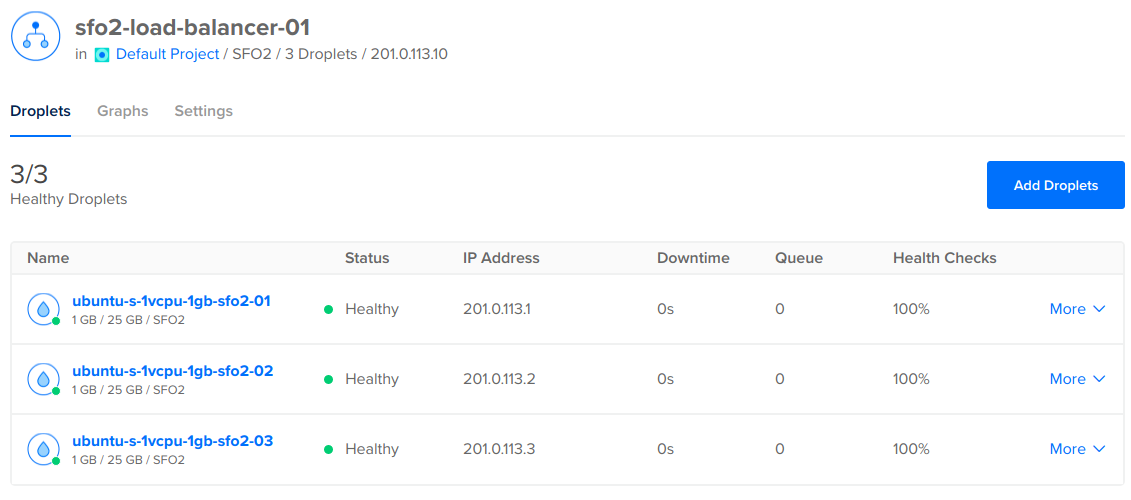
The load balancer’s Droplet tab lists the Droplets connected to the load balancer, and the status column indicates the health of the connection between your Droplets and the load balancer. If your target Droplet is not listed among the Droplets connected to the load balancer, add the Droplet to the load balancer and then reattempt to connect to the target Droplet.
If your Droplet is listed as connected to the load balancer and its status is down, your Droplet’s internal network configuration may be incorrect or the Droplet may be offline. Verify that your Droplets are healthy and active before continuing.
Ping the Load Balancer and the Droplet
You can verify whether the connection is failing at the load balancer level or Droplet level using ping. ping is a diagnostic tool that tests the connection between networked devices and is native on most operating systems.
To verify that the load balancer is reachable from your computer, open a terminal on your local machine and then run the following command:
ping <use-your-load-balancer-ip-address>If your load balancer is accessible from the public internet, ping returns the amount of data it sent to the load balancer and the amount of time it took for the data to reach the load balancer.
Load balancer is accessible
PING 203.0.113.154 (203.0.113.154): 56 data bytes
64 bytes from 203.0.113.154: icmp_seq=0 ttl=46 time=239.488 ms
64 bytes from 203.0.113.154: icmp_seq=1 ttl=46 time=352.659 ms
If your load balancer is not accessible from the public internet, ping returns a timeout error:
Load balancer unreachable
PING 203.0.113.154 (203.0.113.154): 56 data bytes
Request timeout for icmp_seq 0
Run the same command using your Droplet’s IP address.
If your Droplet responds but your load balancer does not, the load balancer is likely causing the connection problem. If you have assessed that the load balancer is the problem, you have two options:
- Destroy the load balancer and then create a new one. This option does not retain the load balancer’s IP address.
- Open a support ticket
Check Load Balancer’s DNS
If you are trying to reach your load balancer through a hostname, such as www.example.com, you need to set up an A record with your DNS provider to point the hostname at the load balancer’s IP address.
To verify if your hostname has an A record pointing at the load balancer’s IP address, open a terminal and use the dig utility to retrieve the A records set up on your domain:
dig <use-your-hostname> AThe command returns output similar to this:
;; global options: +cmd
;; Got answer:
;; ->>HEADER<<- opcode: QUERY, status: NOERROR, id: 53050
;; flags: qr rd ra; QUERY: 1, ANSWER: 2, AUTHORITY: 3, ADDITIONAL: 5

;; OPT PSEUDOSECTION:
; EDNS: version: 0, flags:; udp: 4096
; COOKIE: 1aad2b567441ddd264d7b5c062058926dea6b1dfd388758f (good)
;; QUESTION SECTION:
;bigassdraculasclub.com.		IN	A

;; ANSWER SECTION:
example.com.	30	IN	A	104.16.243.78
example.com.	30	IN	A	104.16.244.78

;; AUTHORITY SECTION:
example.com.	172800	IN	NS	ns3.digitalocean.com.
example.com.	172800	IN	NS	ns2.digitalocean.com.
example.com.	172800	IN	NS	ns1.digitalocean.com.
If the ANSWER SECTION of the output doesn’t contain an A record pointing at your load balancer’s IP address, you need to add an A record to your hostname’s DNS configuration.
If your DNS provider is DigitalOcean, you can add an A record using the control panel. If DigitalOcean is not your DNS provider, reference your DNS provider’s documentation to see how to create A records for your hostname.
If you’ve recently updated A records for your hostname, it can take up to 24 hours for the update to propagate across the internet.
Check Droplet Routes
If your load balancer traffic stopped reaching a Droplet after it rebooted, check that backend Droplet routes are configured properly. To persist routes across a reboot you must make the route permanent.
Related Topics
Why aren't my vanity DNS name servers resolving?
If you use vanity or branded DNS nameservers that delegate to DigitalOcean’s nameservers, you must update to new IP addresses.
How do I debug a firewall causing connection problems with my Droplet?
Diagnose and troubleshoot firewall issues that could be causing network connectivity issues.
How do I debug my Droplet's network configuration?
To debug your network configuration, verify the Droplet’s network interfaces and check its network configuration file.