project.yml configuration file. If you configured a source directory for the component, place the project.yml file in that directory. Otherwise, place it in the repository root.
Validated on 23 May 2022 • Last edited on 5 Mar 2026
App Platform is a fully managed Platform-as-a-Service (PaaS) that deploys applications from Git repositories or container images. It automatically builds, deploys, and scales components while handling all underlying infrastructure.
Functions are blocks of code that run on demand without requiring you to provision or manage servers. You can develop on your local machine, test your code from the command line using doctl, then deploy to App Platform without managing the underlying servers.
You can add a function to an app using the CLI’s app update command or the API’s app update endpoint. To add a function, update the app spec with the function’s specifications and submit the spec using the following command or endpoint.
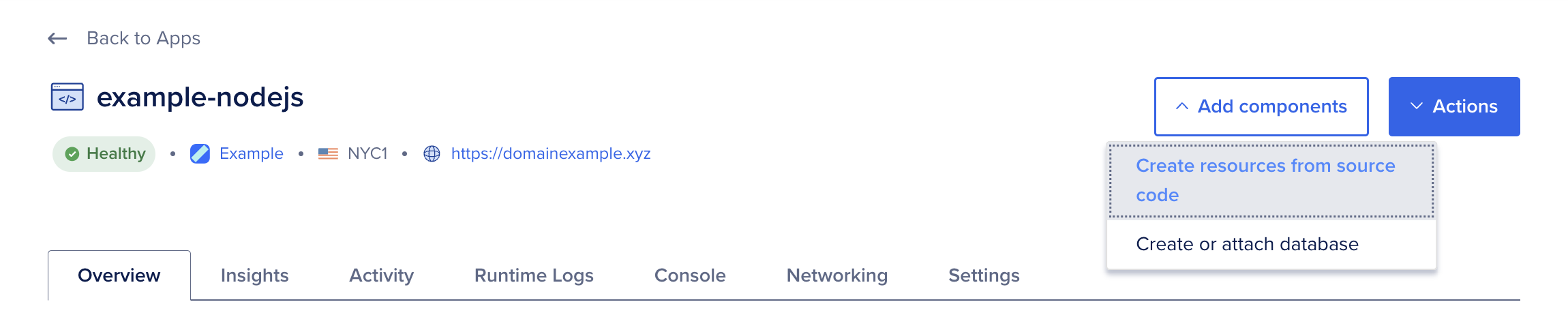
Go to the Apps page of the DigitalOcean Control Panel and select your app. Click Add components, then choose Create resources from source code to add a Function.
On the Add resources screen:
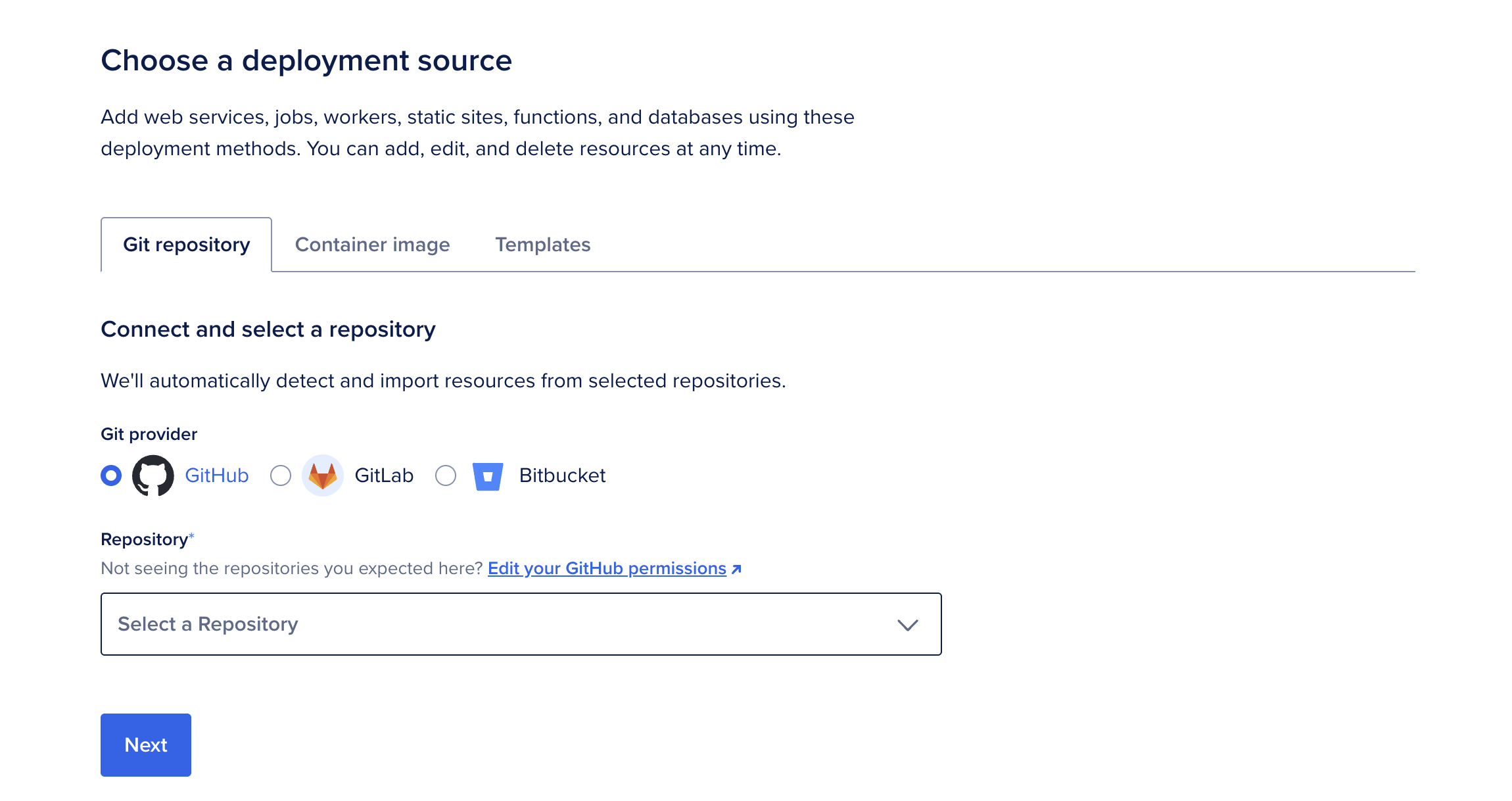
App Platform retrieves your code, analyzes your repository, and automatically selects the appropriate runtime (such as Node or Ruby). If you need to override this behavior, upload a Dockerfile to your branch and restart the creation process.
The Resource settings table displays the configuration settings, some of which the detection system auto-fills.
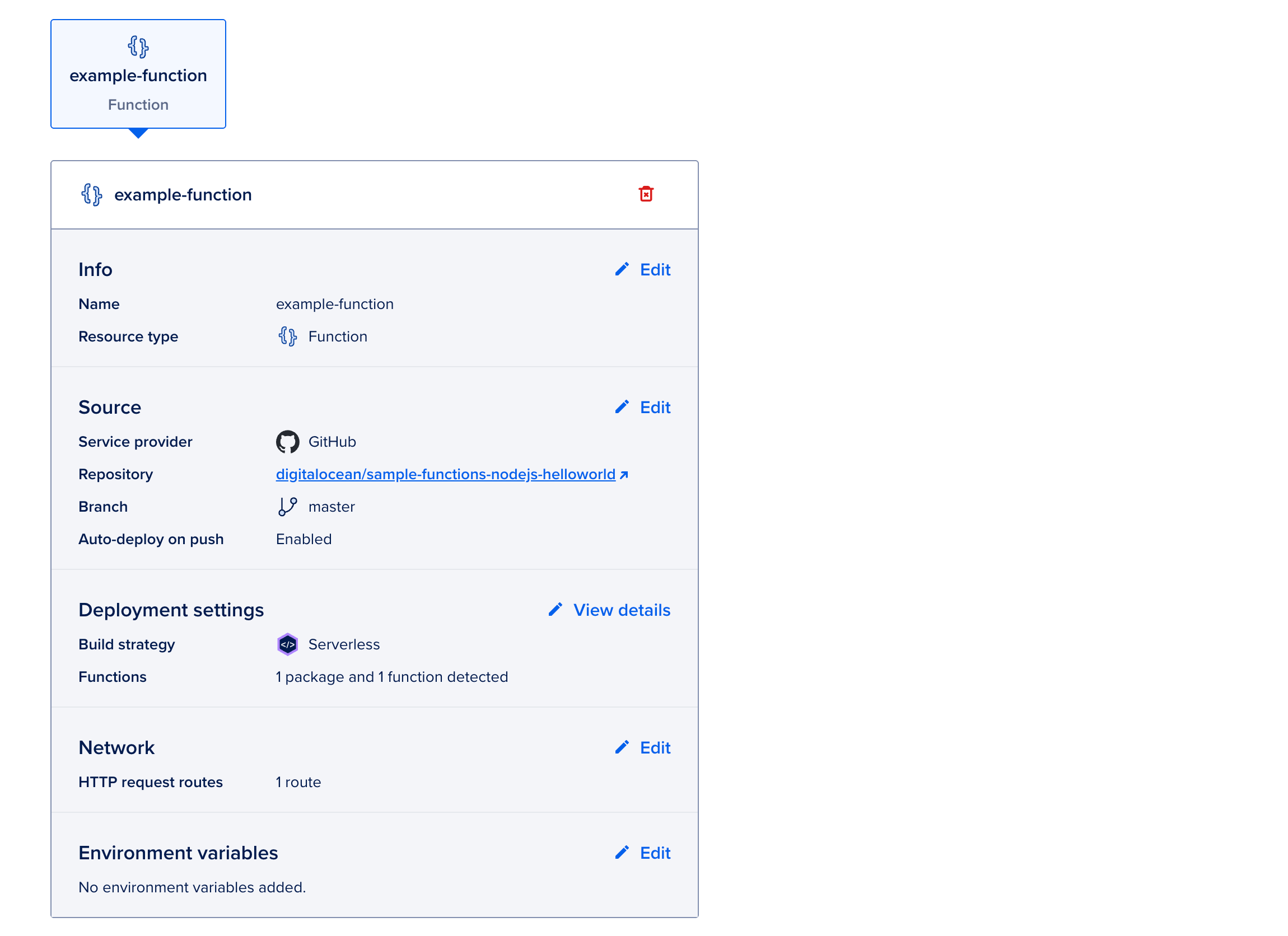
You can configure the following settings:
Name: A unique name for the component.
Branch: The branch to deploy from. You can enable automatic redeploys when changes are made to this branch.
HTTP request routes: For web services and static sites only. The URL path where the app can be accessed, such as your-app-v3cl4.ondigitalocean.app/api. If not specified, the app is accessible from the provided hostname's root.
Environment variables: Key-value pairs available to your app at runtime that let you keep configuration separate from application code. Use them to provide secrets, API keys, and other external settings, such as connection details for an external database.
project.yml configuration file. If you configured a source directory for the component, place the project.yml file in that directory. Otherwise, place it in the repository root.
See the Templating section of the Functions project configuration documentation for examples and more information on configuring App Platform environment variables in project.yml. In addition, see How to Use Environment Variables in App Platform.
App-level environment variables are available to all components in your app. Use them for shared configuration, secrets, API keys, or other values your app needs at build time or runtime.
To set app-level environment variables:
For dynamic, app-specific variables that your app can reference, see Use Bindable Variables.
Review the configuration and pricing details in the Summary section, then click Add resources.
App Platform creates the component with the selected settings and deploys it automatically. You can view or update the component's configuration on the Settings page.
Go to the Apps page, select your app, then click the Settings tab. Select the Function you want to edit.
Click Edit beside a setting you want to change, then click Save.
A Functions component can contain multiple individual functions. To find the live URL of each function in a Functions component, click your app, click the Settings tab, and then click the Functions component you want to inspect.
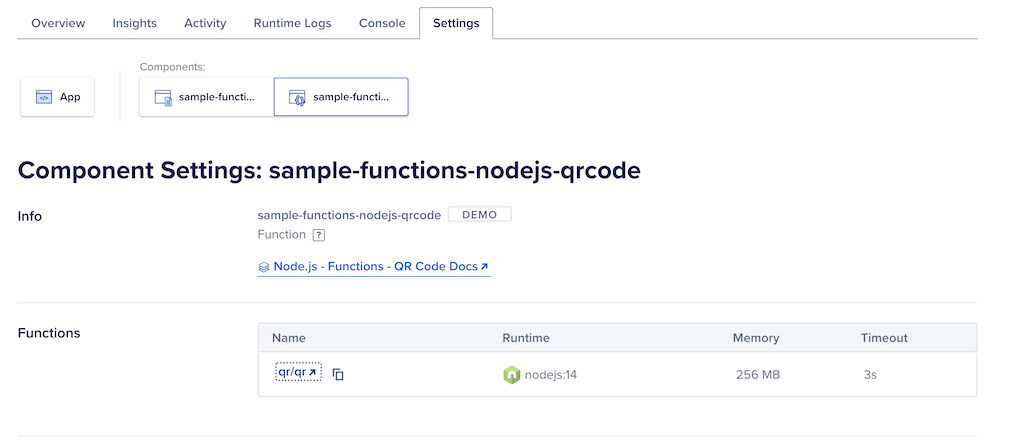
The Functions table lists each function deployed within the component. The Name of each function is a clickable link that opens the function’s URL in a new window in your browser.
curl, or your programming language’s HTTP client library to test the URL with properly formatted HTTP requests.
Functions in App Platform support trusted sources with DigitalOcean Managed Databases. You can add your app as a trusted source on a managed database cluster to enable a secure connection from the app to the database cluster.
When you add an app as a trusted source for a database, all components of the app, including any functions, have secure access to the database cluster.
To configure the functions component to connect to the database cluster, set environment variables and set each value to the bindable variable for your database component (for example, ${db.DATABASE_URL} or ${postgres-db.DATABASE_URL} if your database is named postgres-db), not a literal connection string:
DATABASE_URL for the connection URL (for example, ${db.DATABASE_URL}).DATABASE_PASSWORD for the password (for example, ${db.PASSWORD}).DATABASE_USER for the username to use to connect (for example, ${db.USERNAME}).DATABASE_NAME for the name of the database cluster (for example, ${db.DATABASE}).When using functions to connect to database clusters, reuse the connection across multiple invocations, or close it after each invocation to avoid exceeding the cluster’s connection limit. The function runtime may be reused between invocations, so you can initialize the connection in a persistent global variable.
Trusted sources are not currently supported with MongoDB or Postgres connection pools.
Functions components in App Platform can forward console and error logs to a logging provider. You can choose DigitalOcean’s Managed OpenSearch, or the third-party services Logtail and Datadog:
Enabling log forwarding requires two steps:
project.yml file to handle the LOG_DESTINATIONS environment variable.You can configure a log forwarding destination using either the Control Panel or by updating your app spec.
Go to the Apps page and select your app. Click the Settings tab, then click the Functions component.
In the Log Forwarding section, click Edit, then choose a log forwarding service, either Managed OpenSearch, Datadog, or Logtail.
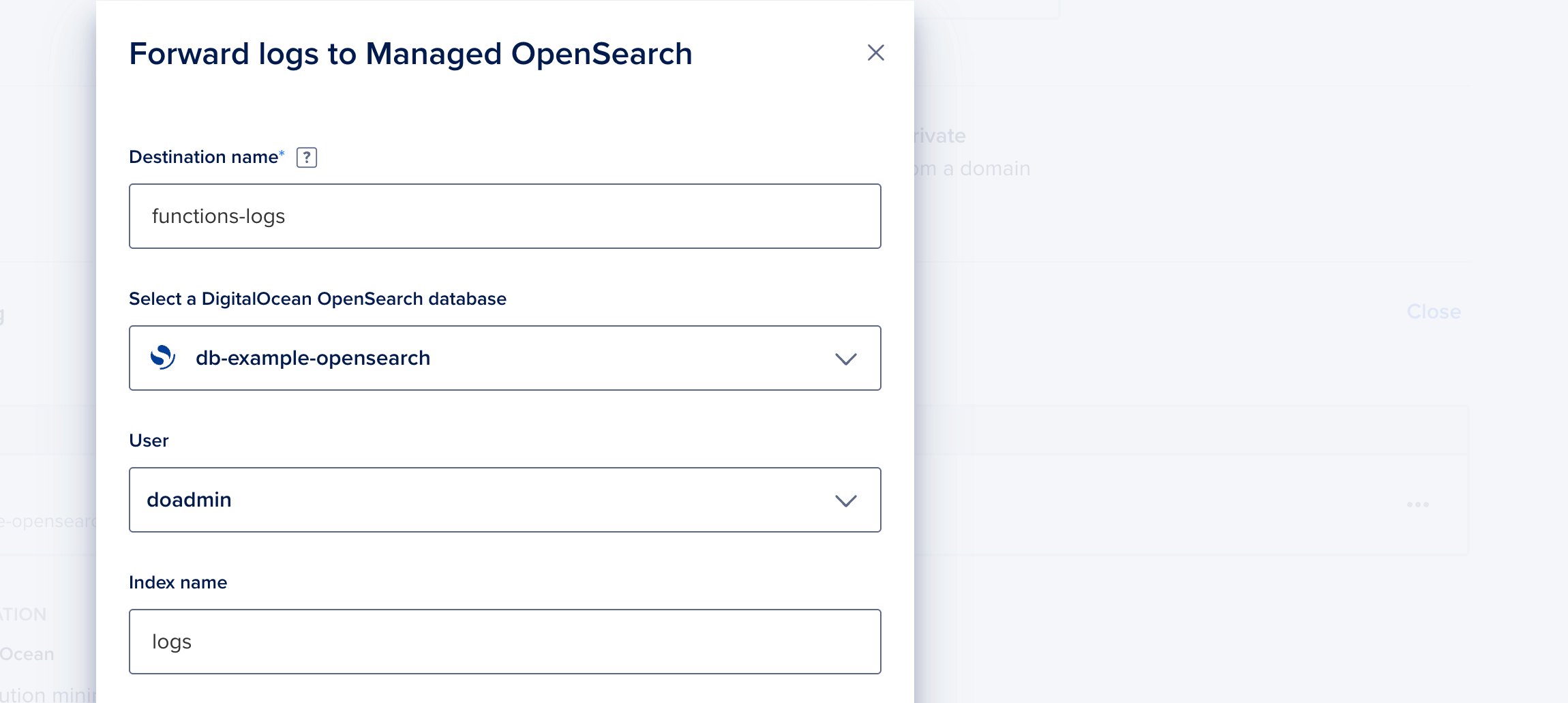
For Datadog, enter a destination name, an endpoint, and an API key. Then click Add Log Destination.
For Logtail, create an HTTP source (for example, platform: http). Enter the resulting token and a destination name, then click Add Log Destination.
You can add log forwarding destinations to functions by updating the app spec. See the log_destinations section of the App Spec reference for details. Here is an example Logtail destination:
log_destinations:
- name: <example-destination>
  logtail:
    token: <your-token>
Place the log forwarding destination in the portion of your app spec that configures the function you’re enabling log forwarding for.
In the same component section, add the following environment variable:
  envs:
  - key: LOG_DESTINATIONS
    scope: RUN_AND_BUILD_TIME
    value: ${_self.FUNCTIONS_LOG_DESTINATION_JSON}
App Platform provides the value of ${_self.FUNCTIONS_LOG_DESTINATION_JSON}, which is a JSON structure with configuration details for log forwarding destinations.
LOG_DESTINATIONS. You can view this variable on the Settings page in the Environment Variables section. Removing this environment variable stops log forwarding from working.
project.yml File
To complete the setup, add the LOG_DESTINATIONS environment variable to your function’s project.yml file:
environment:
  LOG_DESTINATIONS: ${LOG_DESTINATIONS}
This passes the component-level LOG_DESTINATIONS environment variable to the Functions process. After updating project.yml, redeploy your Functions component.
Go to the Apps page, select your app, then click the Settings tab. Select the Function you want to destroy.
At the bottom of the page, click Destroy Component. Enter the Function's name to confirm, then click Destroy.
All Functions product limits also apply to Functions components in App Platform. See the following link for details.

Limits and known issues for DigitalOcean Functions.
Try using different keywords or simplifying your search terms.